How to use Kakobuy with the Spreadsheet, from link to doorstep
The complete route, written from the account's point of view: what each step costs, which screen it happens on, and where the clock is running.
Official sequence checked 15 October 2026. These older tutorial screens contain historical prices, balances, coupons, routes and legacy labels. Treat them as interface examples; current product, order and parcel screens govern. Every image opens at full size.
Official buying guide ↗Find the product
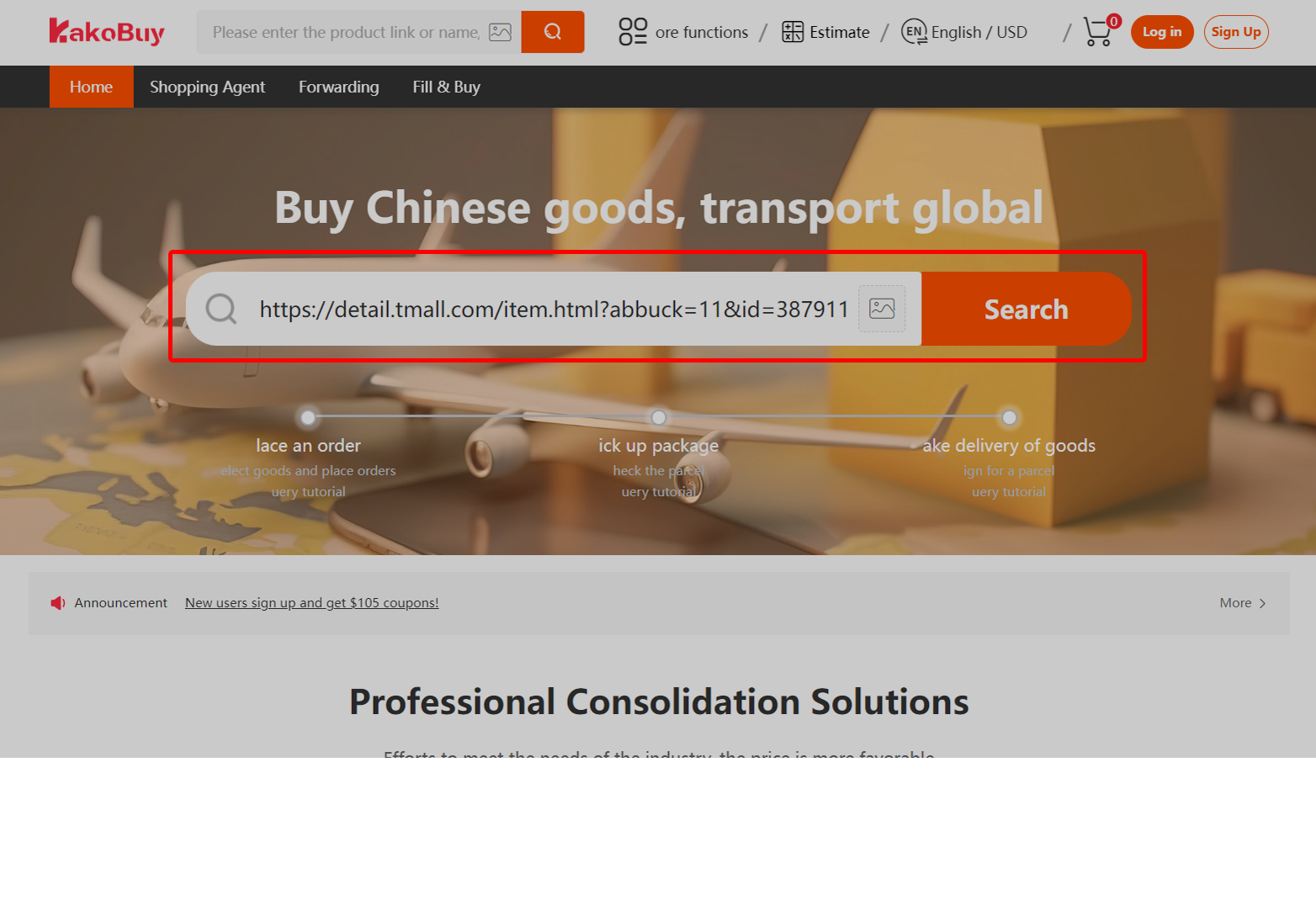
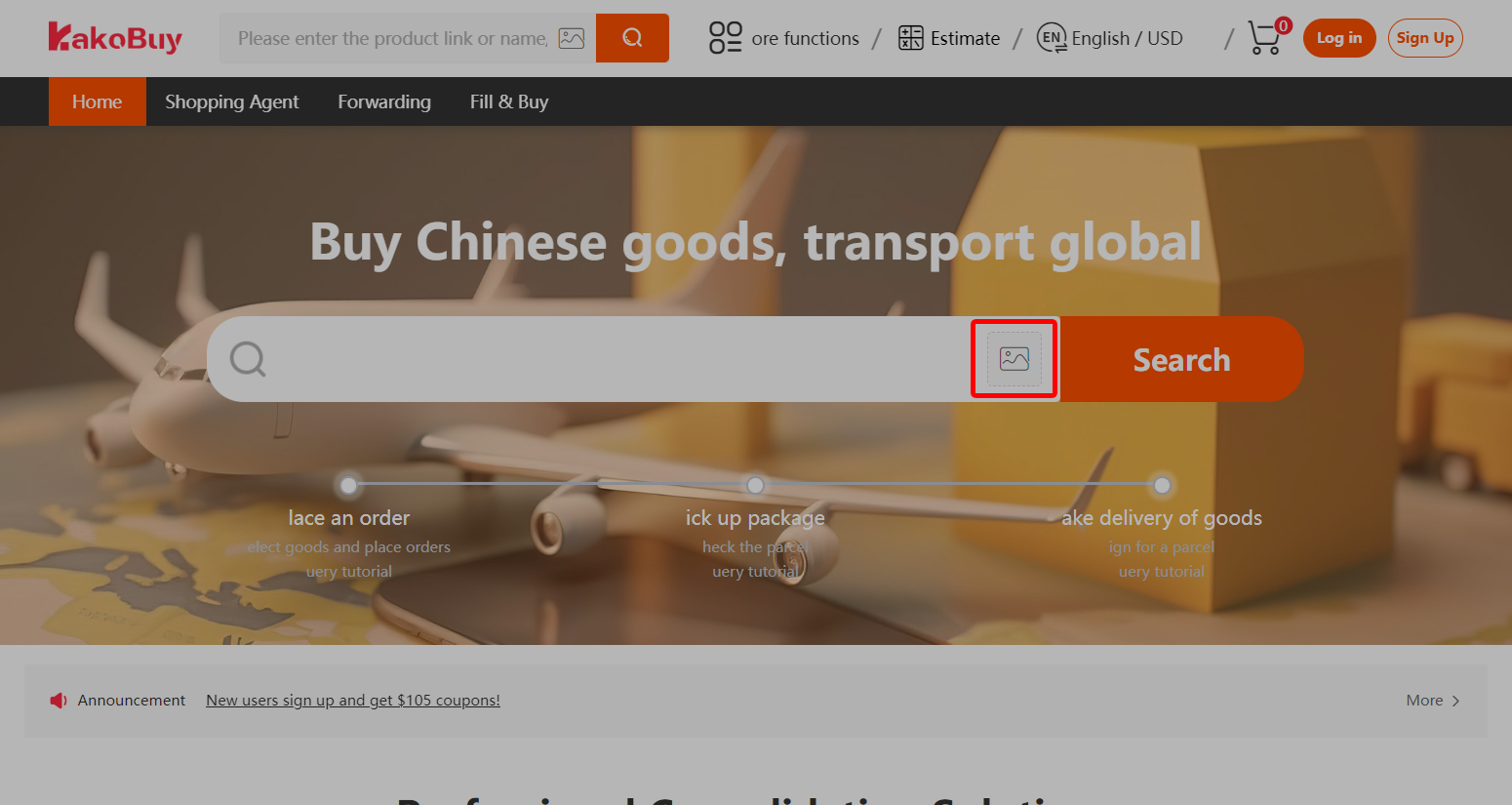
Start with a link, photo or keyword. Keep the original listing beside your account record so you can compare the imported item, variant and price.
Browse the product directory →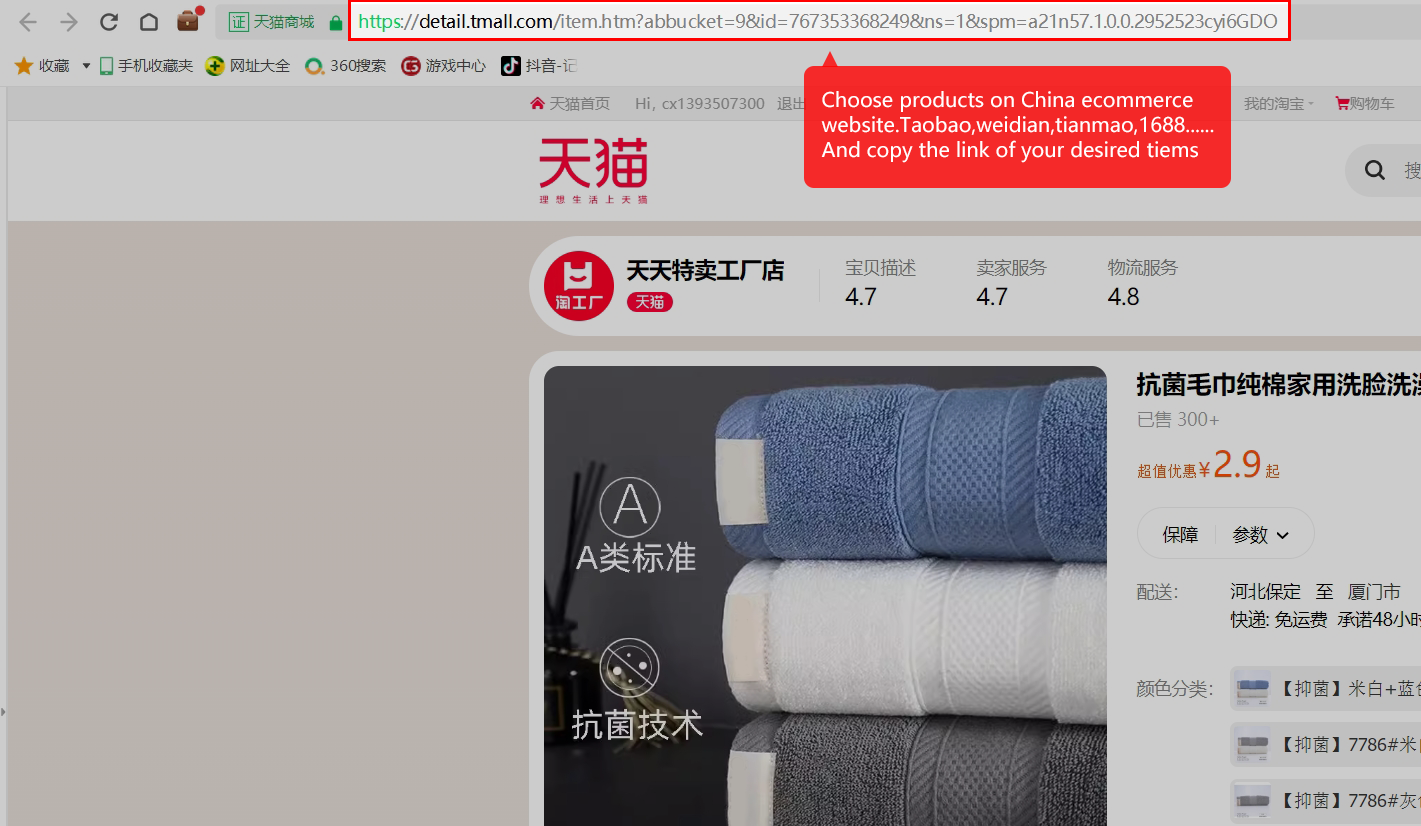
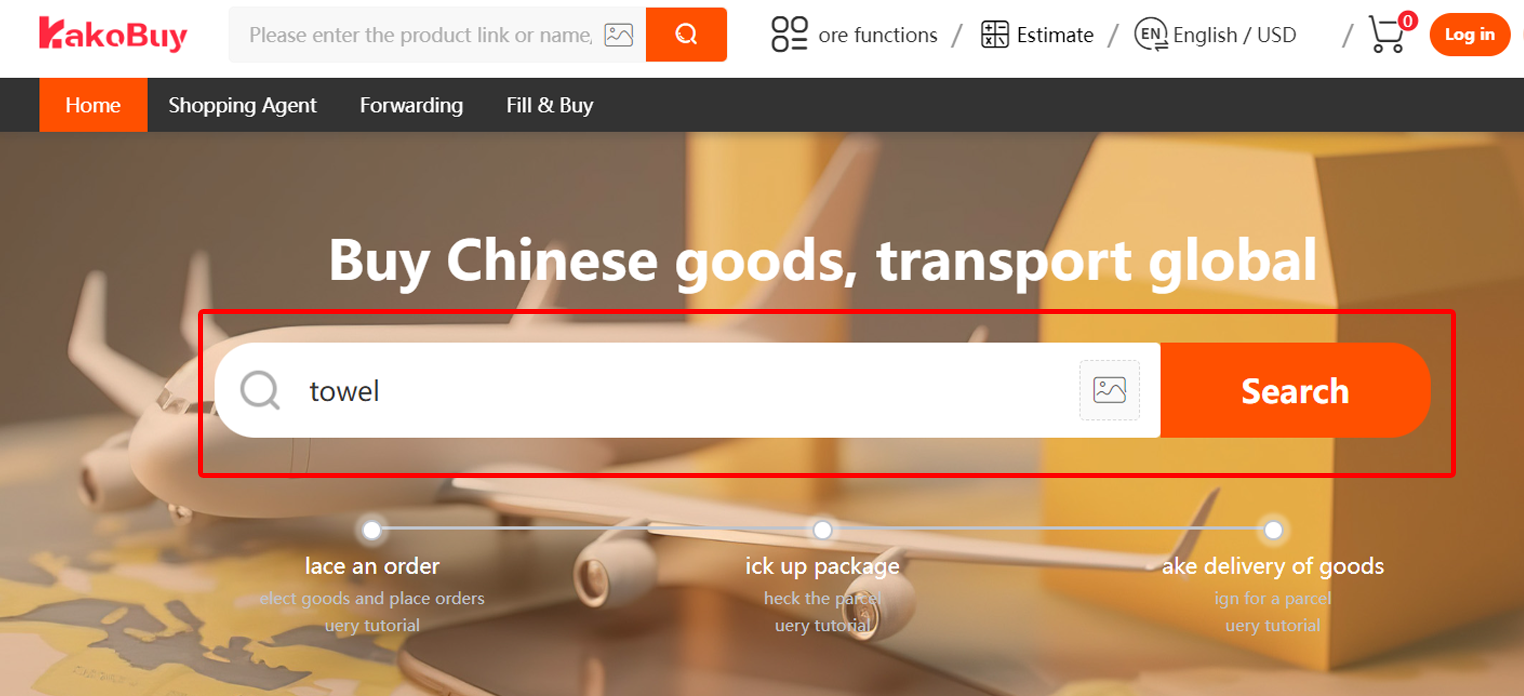
Submit the purchase request
Choose size, colour and quantity. Keep exact variant notes in the order. If automatic import does not work, read the manual form’s terms before submitting.
Check the listing and seller →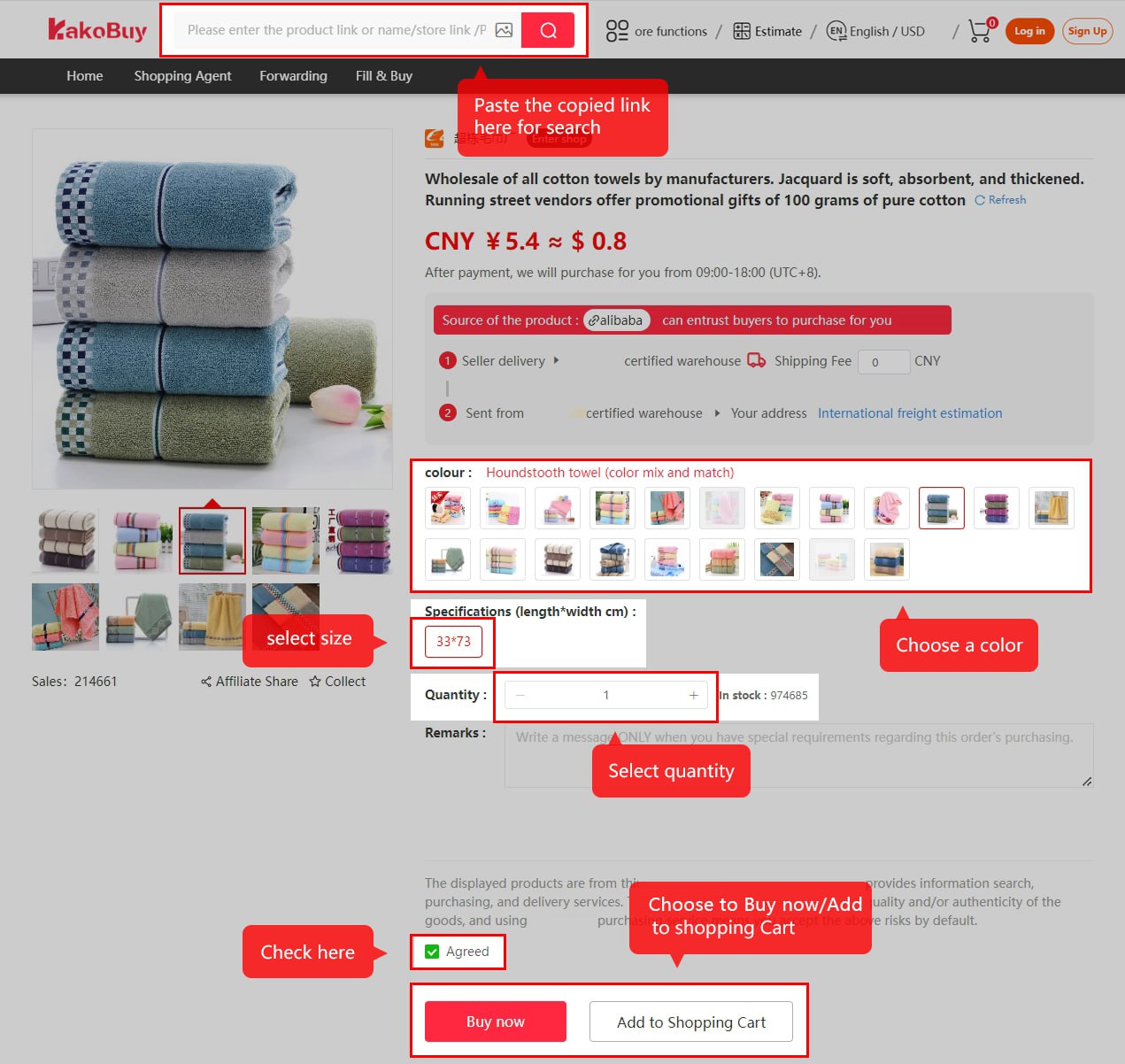
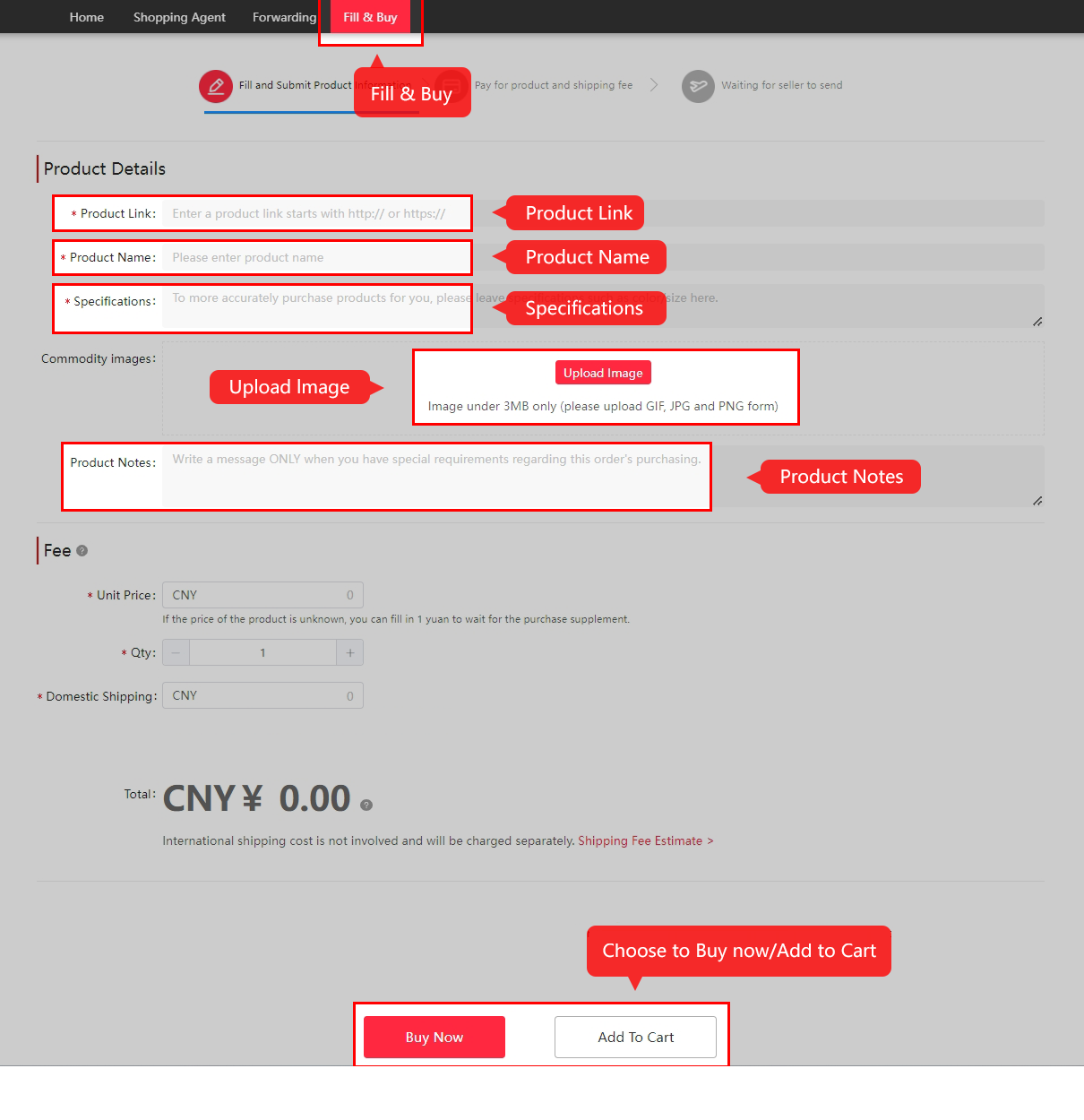
Make the first payment
Review the goods price, seller’s domestic delivery and the payment method available to you. The displayed currency and the wallet settlement rules are different things.
Understand the balance and top-up →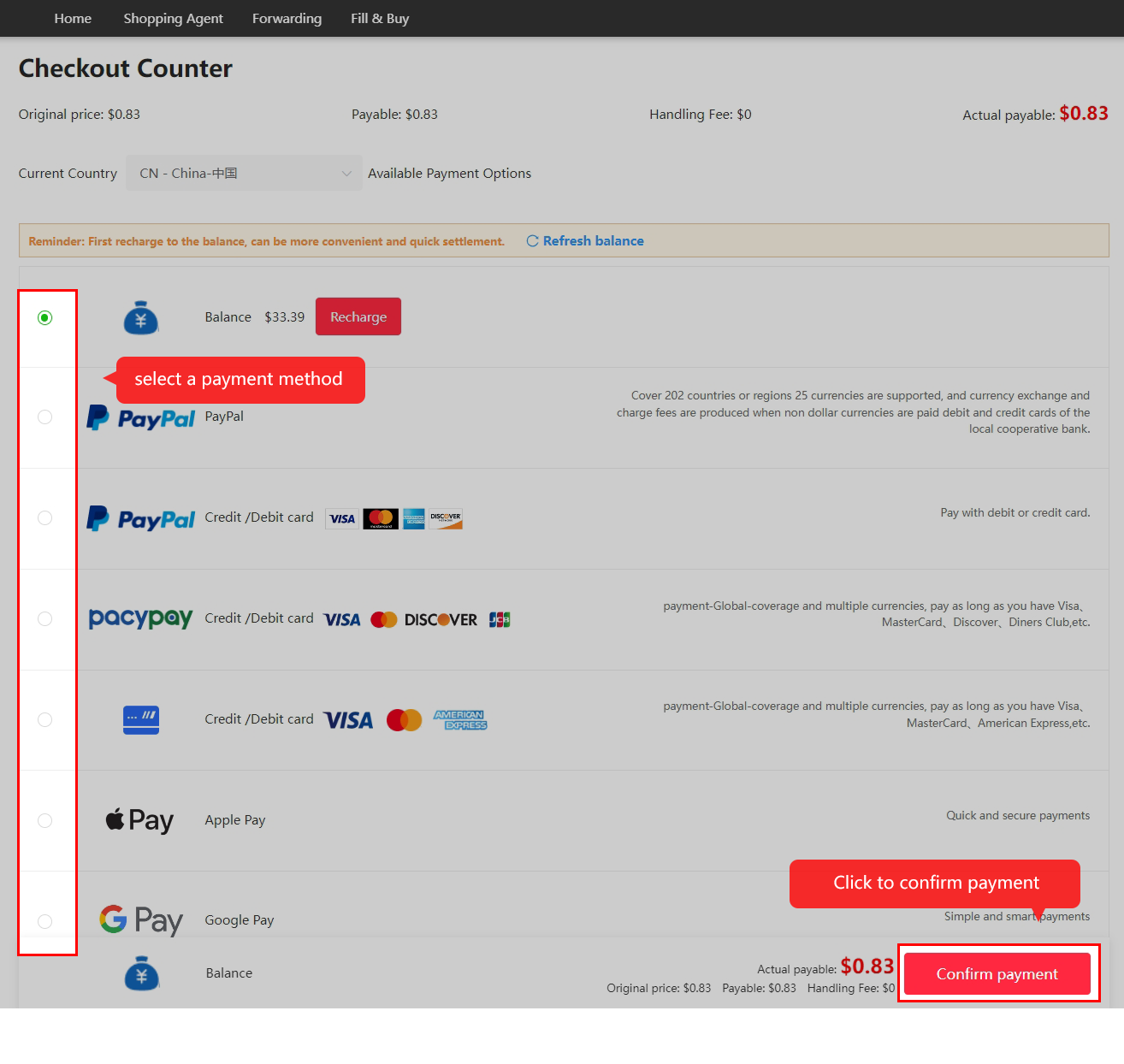
Follow purchasing and dispatch
Read messages about stock, variants or price changes and check the order status. Seller dispatch and buyer processing depend on the actual order; old tutorial timings are examples.
Find important account messages →
Review warehouse QC
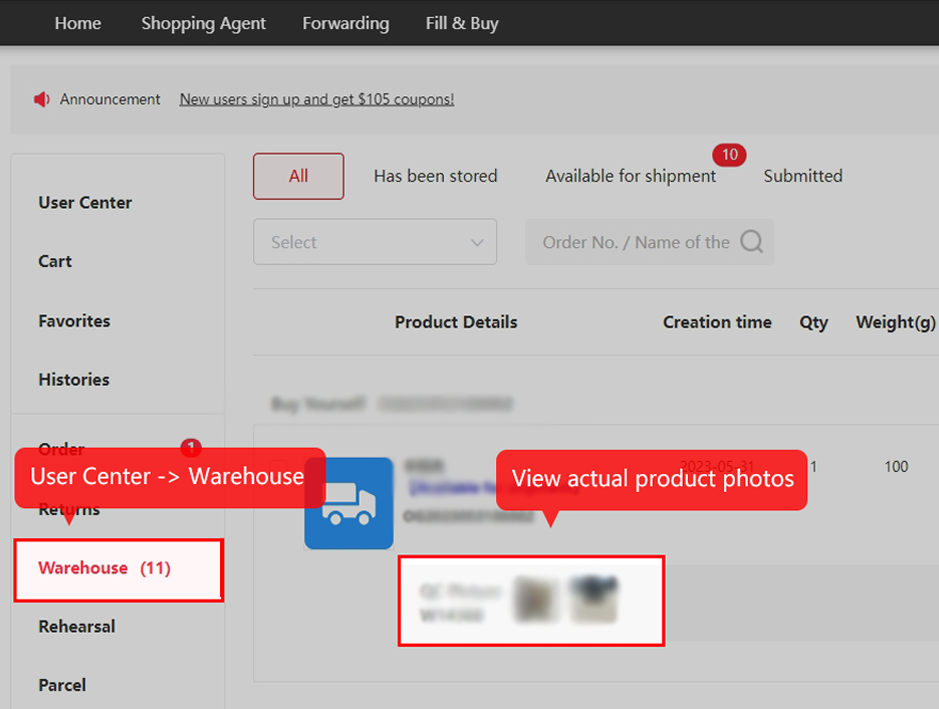
Open the photos attached to the received item. Compare it with your notes and request specific evidence promptly. Return eligibility and storage have different deadlines.
Know what inspection covers →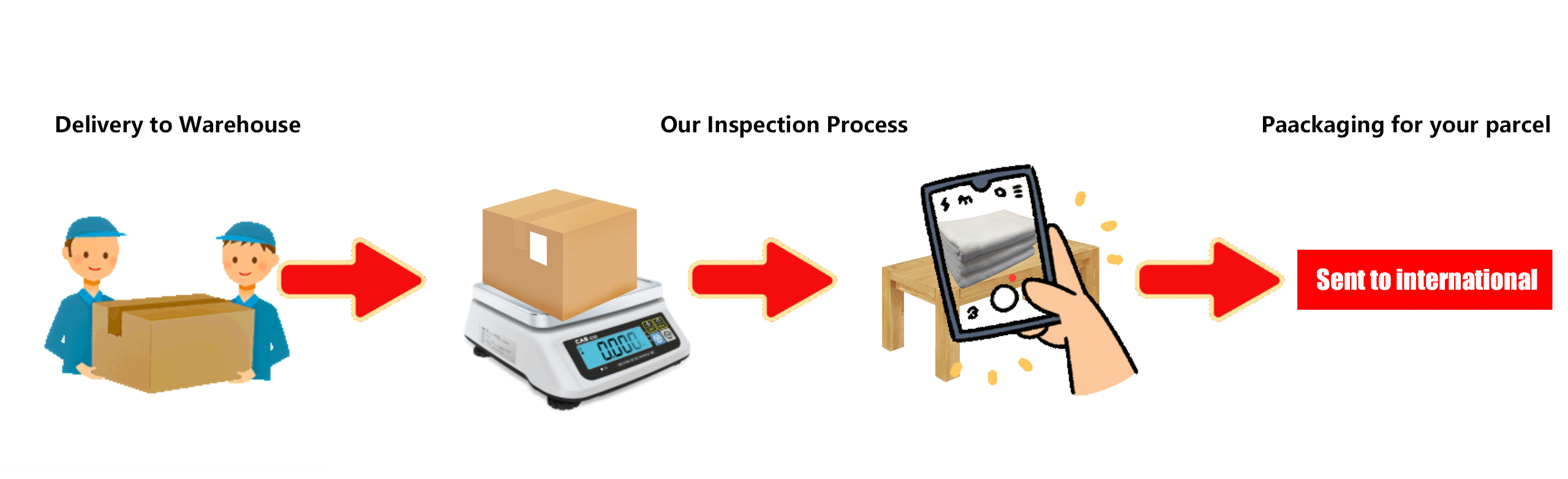
Prepare a parcel and pay freight
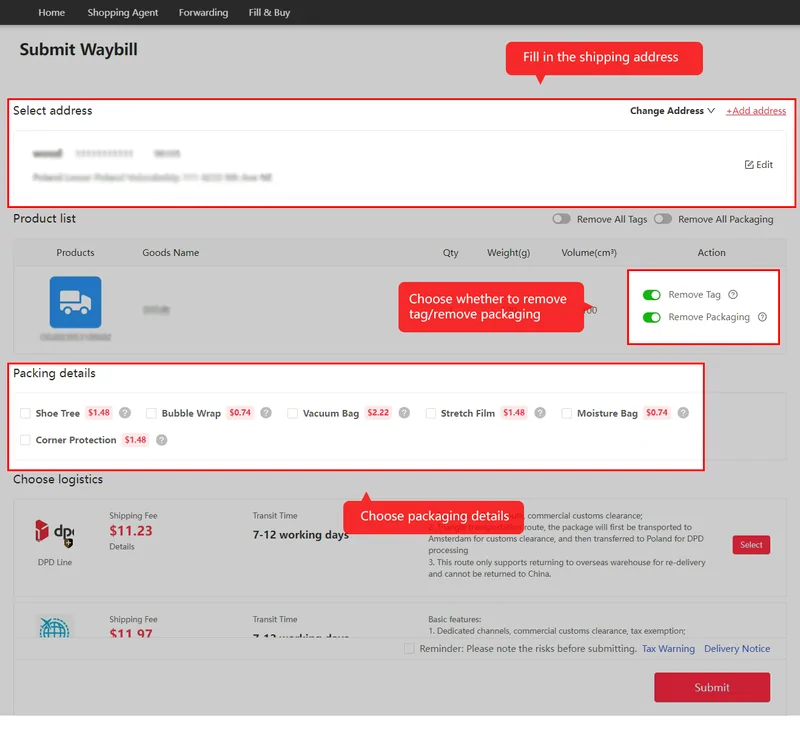
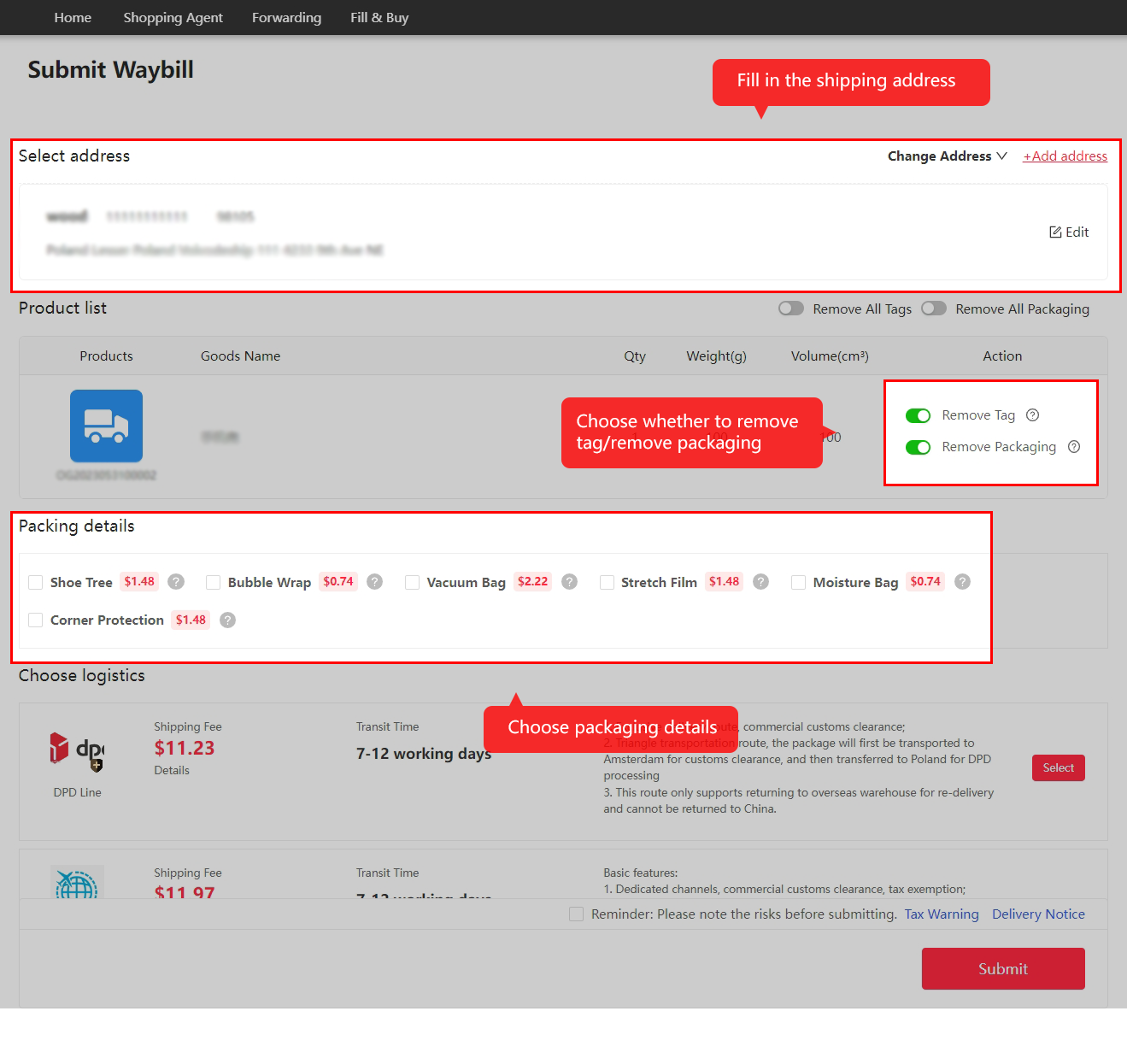
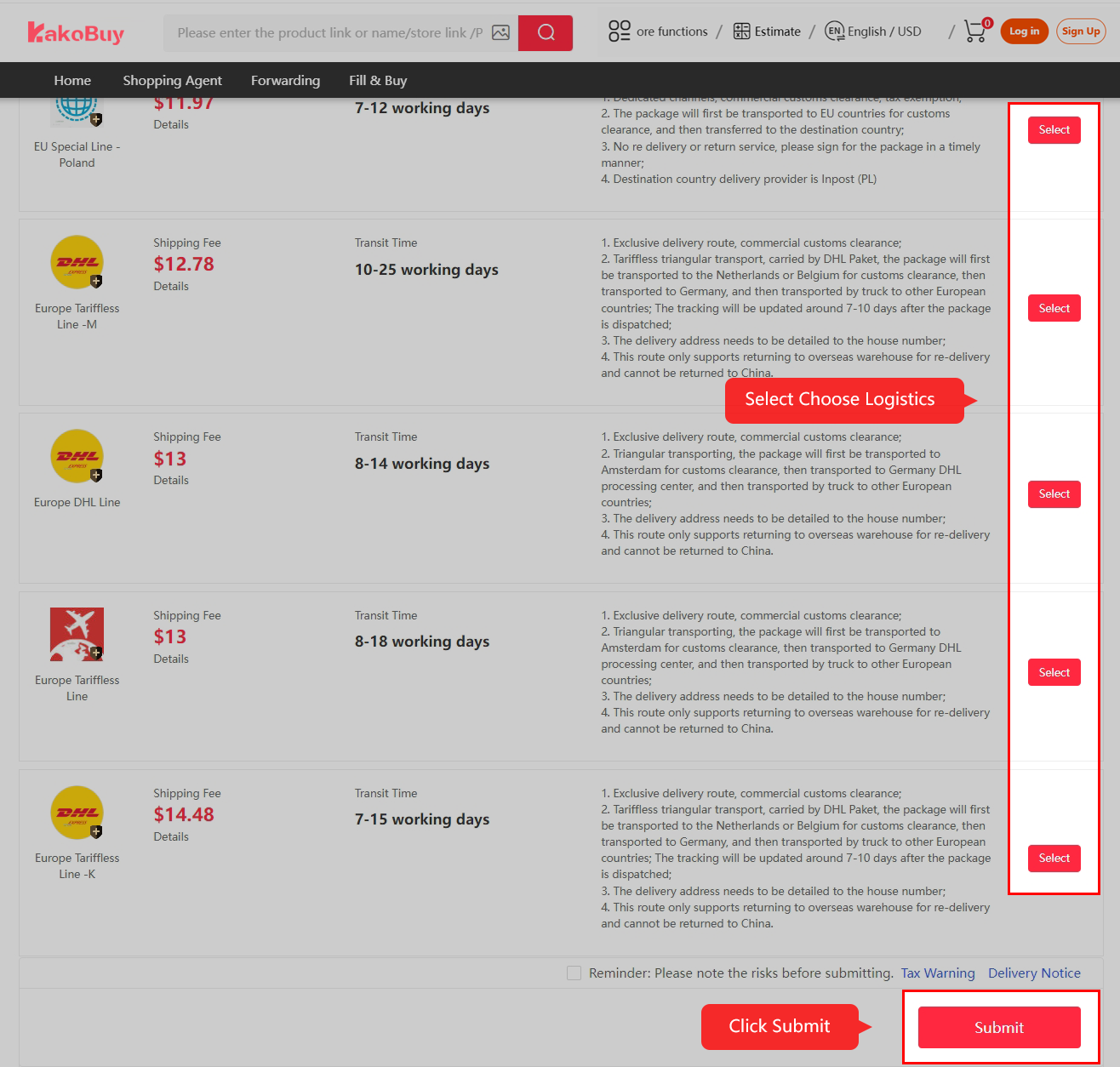
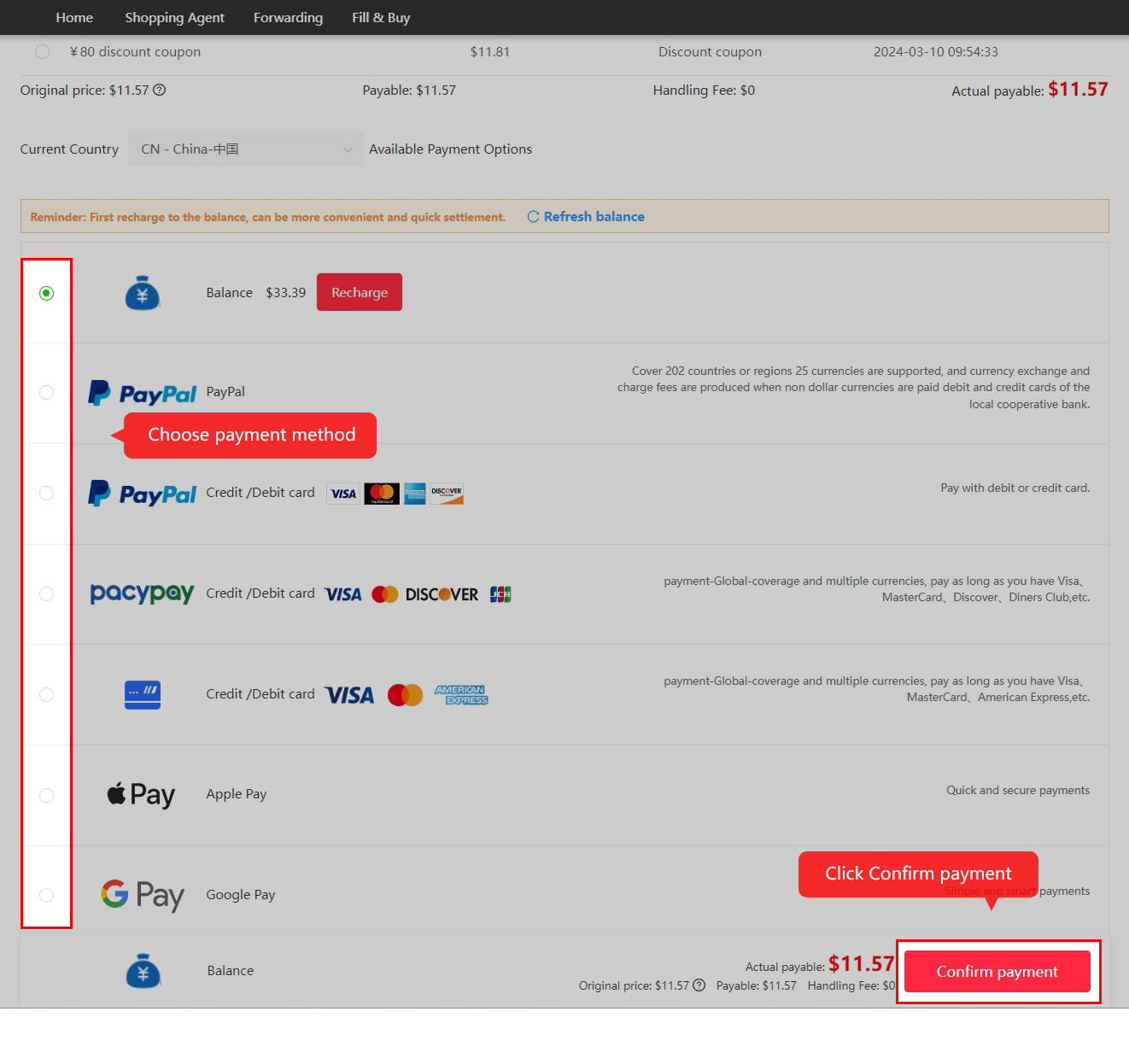
Select stored items, confirm the address, choose packing and an eligible route, then inspect the final payment. Apply only coupons that the checkout accepts for this parcel.
Read the complete cost layers →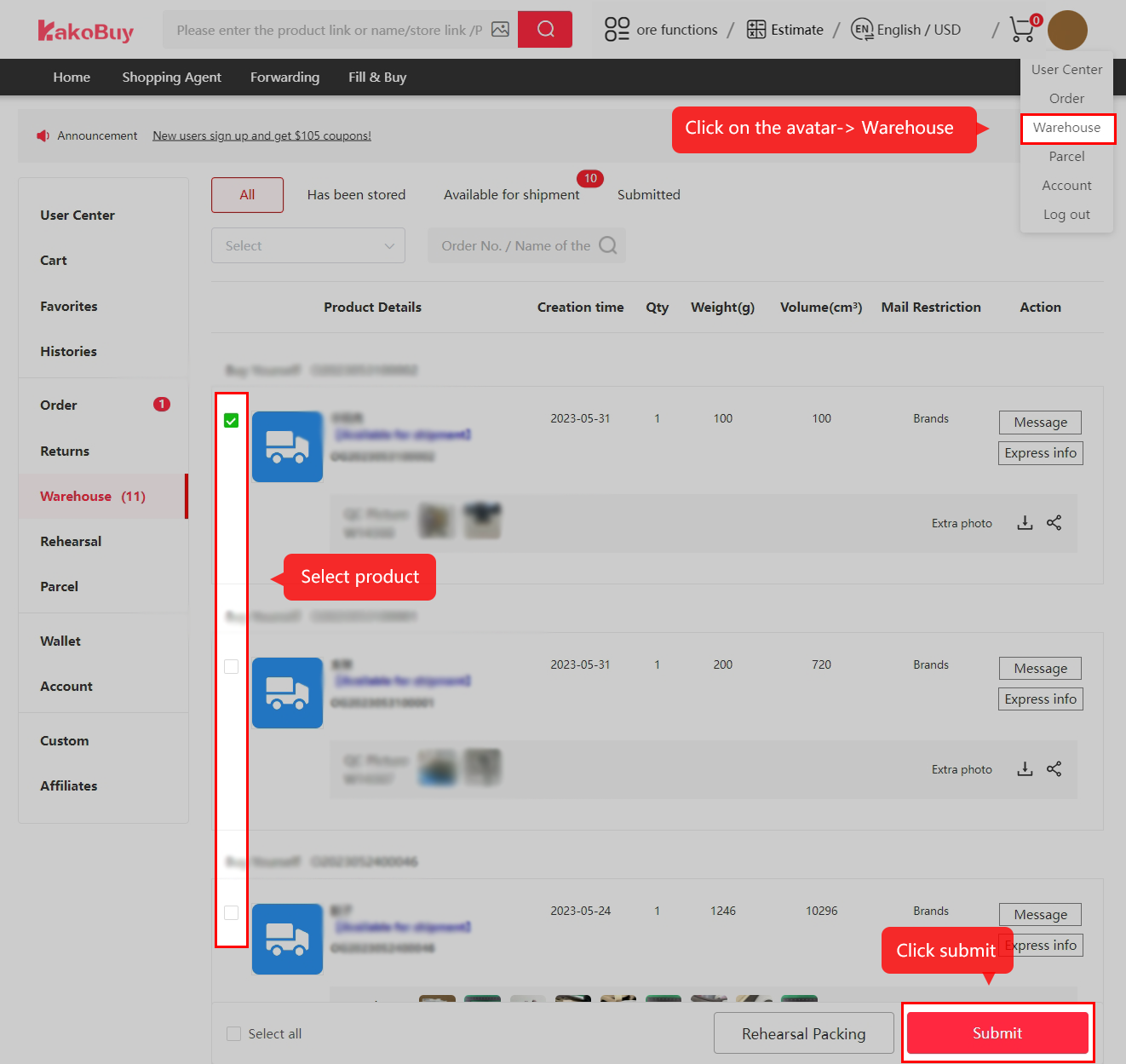
Follow the outbound parcel
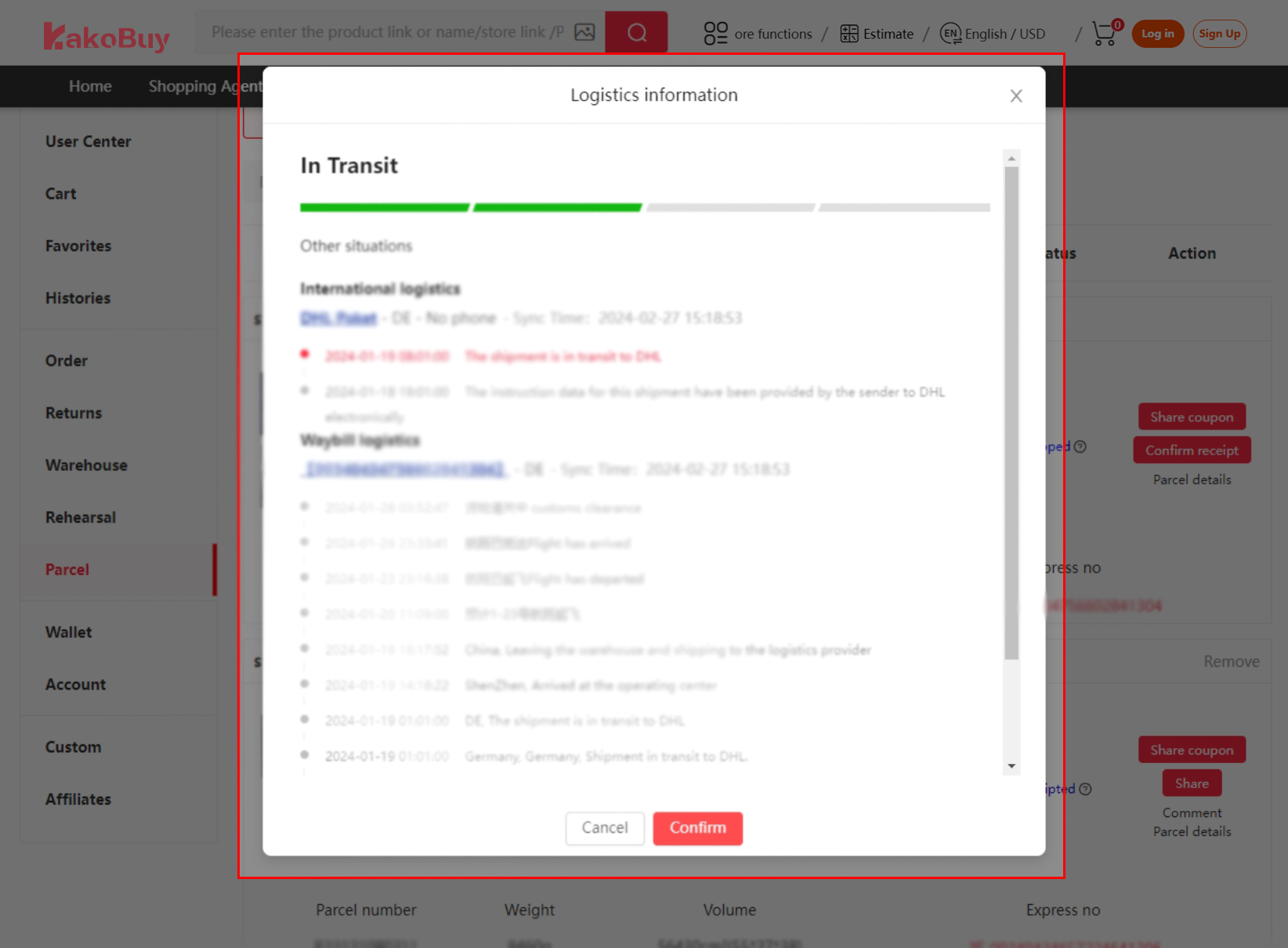
Use the parcel record for packing, handover and logistics events. Save the parcel number. A scan gap alone does not prove loss; ask support about the actual status when needed.
Find the right support entrance →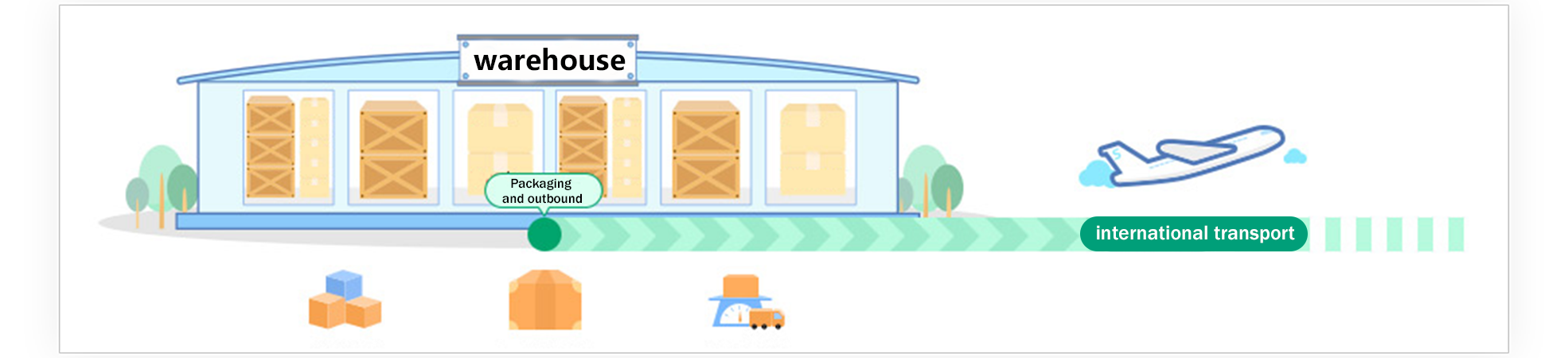
Inspect delivery and confirm
Check the contents before confirming receipt. Retain original photos and packaging for a genuine issue, and report it promptly through the official parcel channel.
Review after-sales evidence →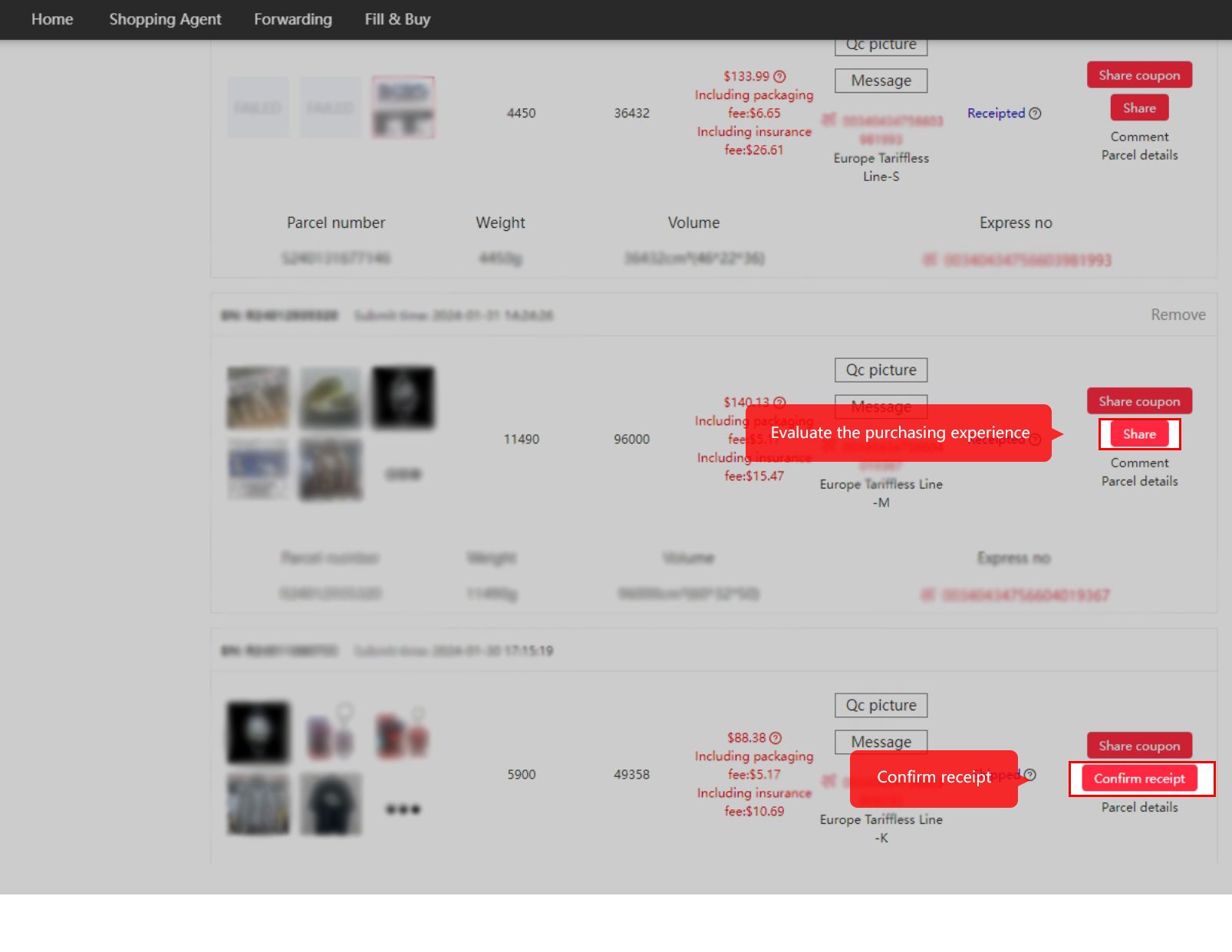
Overview
The shape of the whole trip
A buying agent exists because most Chinese platform sellers do not ship abroad and do not answer foreign cards. You pay the agent, the agent buys domestically, the item lands in a warehouse, and later you pay again to ship an assembled parcel internationally. Two payments, one account between them.
Everything below assumes you already registered and read the two sign-up documents. The protocol you agreed to sets the purchasing window at 6-15 working days and makes no final promise on completion, which is worth knowing before, not after.
A useful habit for the whole trip: treat the account, not your memory, as the system of record. Variant choices go in remarks, problems go in the order thread, and photos get saved out while they are still live. Order notes and original evidence help support understand the issue. Eligibility and the applicable seller, route and claim rules still determine the result.

Second half
Warehouse, inspection and the parcel you assemble
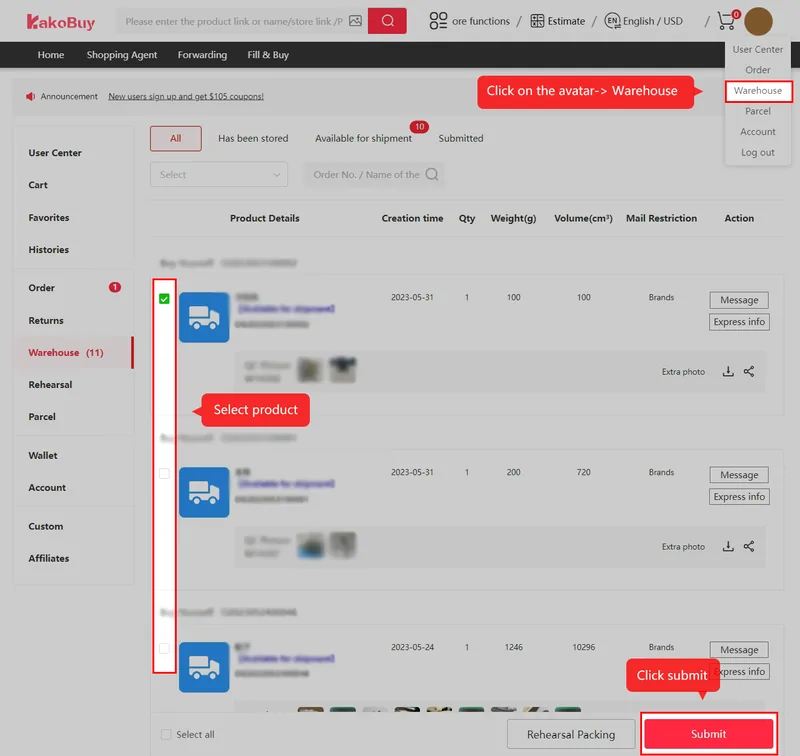
Arrival at the warehouse triggers the free appearance check. Its scope is strictly garments, bags, suitcases and shoes, opened for looks only; the inspection page prints the exact exclusions. QC photos attach to the item in your account's warehouse view.
Items then sit in storage, free for 100 days on the normal clock, while you add more. When ready, you select items, choose packing options, and submit the parcel. Tag removal and packaging removal are toggles at this screen; vacuum packing and corner protection are paid add-ons priced per item.
The second payment happens here: international freight for the assembled parcel, plus any add-ons, minus any coupon from your shelf.
Freight
Shipping routes and what moves the price
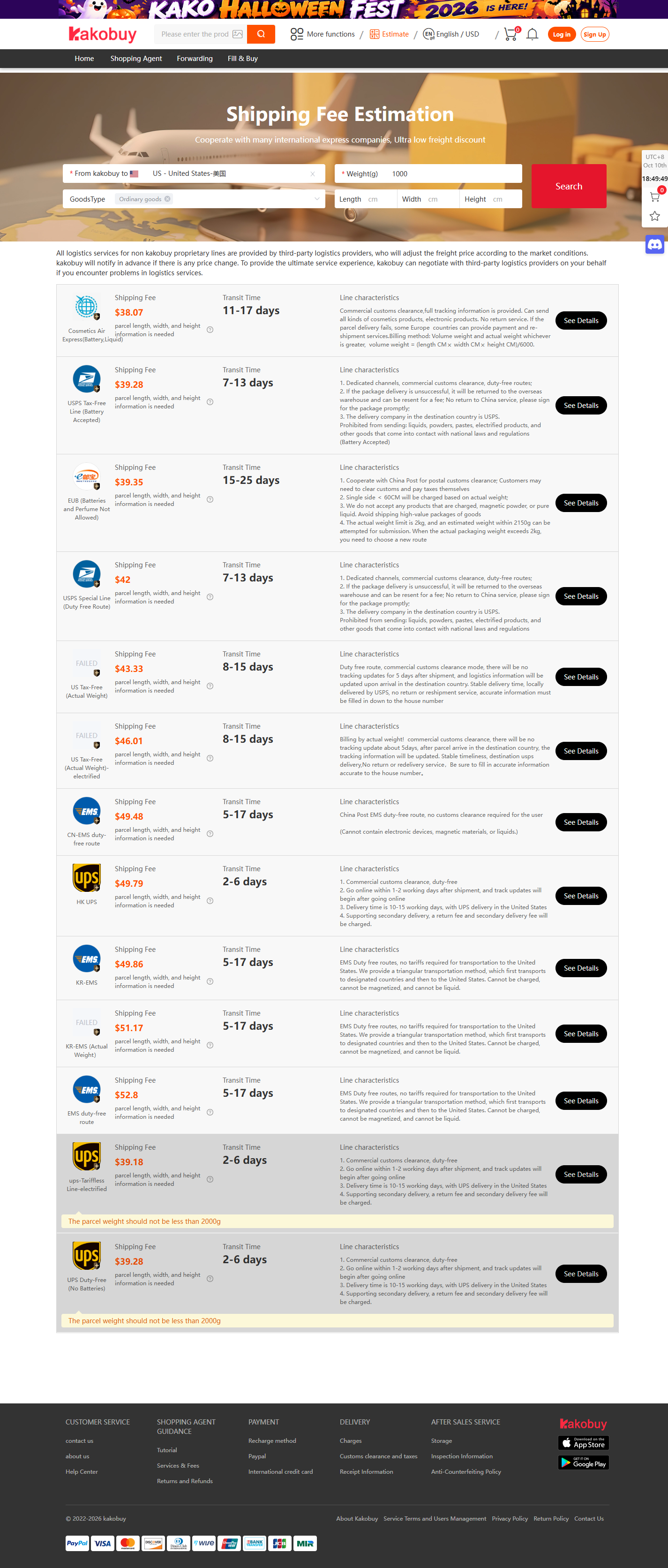
Routes are quoted per destination and per weight on the operator's estimator, and they move. On 10 October 2026 the cheapest line to the United States for one kilogram quoted $38.07 over 11-17 days, with cheaper headline lines greyed out below their two-kilogram minimums. Light parcels cannot take heavy-parcel prices.
To the EU, the operator has advertised a flat €3 per-parcel customs arrangement since 1 July 2026, alongside duty-inclusive lines. Those are the operator's own policy claims, dated, and they can end; the announcements page tracks them.
Volumetric weight matters as much as the scale: length by width by height divided by a route-specific divisor. A shoebox of caps can bill as twice its scale weight.
Why route an order through an agent
Three practical reasons, none of them romantic. Sellers on domestic platforms rarely ship internationally; an agent gives them a domestic address. Consolidation collapses five domestic parcels into one international one, and freight is where the money is. And the warehouse check, limited as its scope is, catches the wrong-item and wrong-size cases while the seller still answers.
The honest counterweight: an agent adds time, a second payment, and a layer of policy between you and the seller. For a single item that an international retailer stocks anyway, an agent is often the slower and dearer path. This route earns its keep on multi-item hauls and on things no exporter carries.